
Introduction
When printing large or multi-page documents, the term collate often pops up in printer settings. But what does “collate” mean in printing, and why should you care? In simple terms, collating refers to the process of arranging printed pages in a specific order. Whether you’re printing reports, presentations, or booklets, understanding collating can help you save time and ensure your print jobs are organized and professional. In this guide, we’ll explore what collating is, how it works, and why it’s essential for your printing tasks.
What Is Collating in Printing?
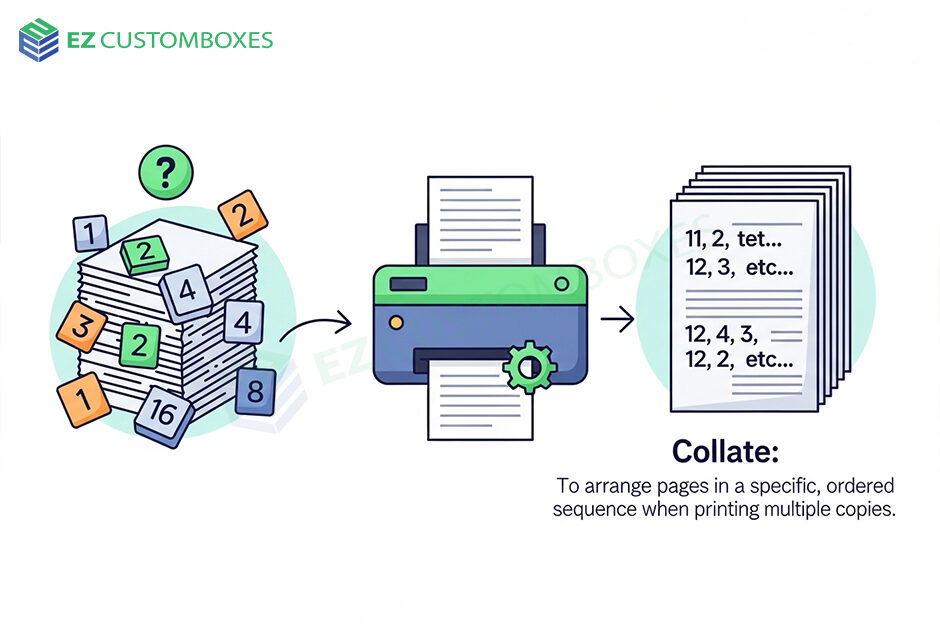
What does collate mean when printing. Collating in printing refers to the automatic arrangement of pages in a specific order. When you choose the collate option, your printer prints each page of the document in sequence for each copy before moving on to the next one.
For example, if you’re printing three copies of a 5-page document, and you select “collate,” the printer will print pages 1-5 for the first copy, then pages 1-5 for the second copy, and so on. This ensures that each set is in the correct order, ready to go.
Without collating, the printer would print all copies of page 1, then all copies of page 2, and so forth. You would then have to manually organize the pages into separate sets.
How Does Collating Work in Printing?
To better understand how collating works, let’s break it down for different types of print jobs.
1. Single-Sided Printing
When printing single-sided documents, collating helps you print multiple copies in the right order. Without collating, you would end up with piles of all the copies of page 1, followed by all the copies of page 2, and so on. Collating organizes the pages for you, saving you time and hassle.
Example:
- Printing 3 copies of a 4-page document.
- Collated: Copy 1 (pages 1-4), Copy 2 (pages 1-4), Copy 3 (pages 1-4).
- Non-Collated: Pages 1, 1, 1; pages 2, 2, 2; pages 3, 3, 3; pages 4, 4, 4.
2. Double-Sided Printing
When printing double-sided documents, collating still plays an important role in ensuring each printed sheet is in the correct order. For example, a 6-page document printed on 3 double-sided sheets should be collated to ensure pages 1-2, 3-4, and 5-6 appear in the correct order.
Example:
- Printing 2 copies of a 6-page document (double-sided).
- Collated: 1st sheet (pages 1 and 2), 2nd sheet (pages 3 and 4), 3rd sheet (pages 5 and 6).
- Non-Collated: 1st sheet (pages 1 and 2), 2nd sheet (pages 1 and 2), 3rd sheet (pages 1 and 2).
3. Printing Booklets or Brochures
For booklets or brochures, collating ensures that the pages are in the correct order before folding and binding. This is particularly important for projects that require a polished, professional finish.
Why Is Collating Important in Printing?
Collating offers several benefits that can make your printing process more efficient, organized, and professional:
1. Saves Time
Collating automatically organizes your print jobs, so you don’t need to spend time manually sorting pages after printing. Whether you’re printing a handful of documents or a large batch, collating saves time and effort.
2. Increases Efficiency
By collating pages in order, you avoid having to reprint and organize pages later. This makes it easier to handle large print jobs, especially when you’re printing multiple copies of a multi-page document.
3. Reduces Errors
Without collating, you risk getting pages out of order, which can lead to confusion or mistakes. Collating ensures that all pages are printed in the right order, preventing errors and improving the quality of your printed materials.
4. Professional Finish
Collating makes a multi-page print job look more organized and polished. Whether you’re printing reports, brochures, or marketing materials, collating ensures that the final product is neat and ready to distribute.
How to Set Collating on Your Printer
Setting up collating depends on your printer model and the software you’re using. Here’s a simple guide for enabling collating on your printer:
1. Using Microsoft Word or PDF Reader:
- Open your document in Word or a PDF viewer.
- Go to File > Print.
- In the print settings window, look for the Collate option.
- Check the box for Collate and select the number of copies.
- Click Print to start printing.
2. Printer’s Control Panel:
- Access your printer’s control panel or settings.
- Look for Copy Settings or Print Settings.
- Enable the Collate option, along with any other preferences like double-sided printing.
- Press Start to begin printing.
FAQ: Understanding Collating in Printing
1. Why should I use collate when printing?
The collate meaning organizing your print job in the correct order. It saves time, reduces errors, and ensures that your printed materials look professional.
2. What happens if I don’t select collate?
If you don’t select collate, your printer will print all copies of page 1, then all copies of page 2, and so on. You’ll need to manually sort the pages afterward.
3. Can all printers collate?
Most modern printers, especially those designed for office use, offer a collate option. However, it’s important to check your printer’s manual to confirm whether this feature is supported.
4. Does collating use more paper or ink?
No, collating does not affect the amount of ink or paper used. It simply organizes the order in which pages are printed.
5. How do I know if my printer can collate?
Check the printer settings or user manual to see if the collate option is available. If your printer is capable of collating, it will usually be listed in the print setup options.
Conclusion: The Value of Collating in Printing
Understanding collate meaning printer is essential for anyone looking to print multi-page documents efficiently and professionally. Whether you’re printing reports, brochures, or booklets, collating ensures that your documents are organized, saving you time and reducing the risk of mistakes. So, next time you’re printing a multi-page document, remember to enable collating for a smoother and more organized process.
Want to make your printing tasks even easier? Explore your printer’s collate settings and start using this feature today for faster, more professional print jobs!