
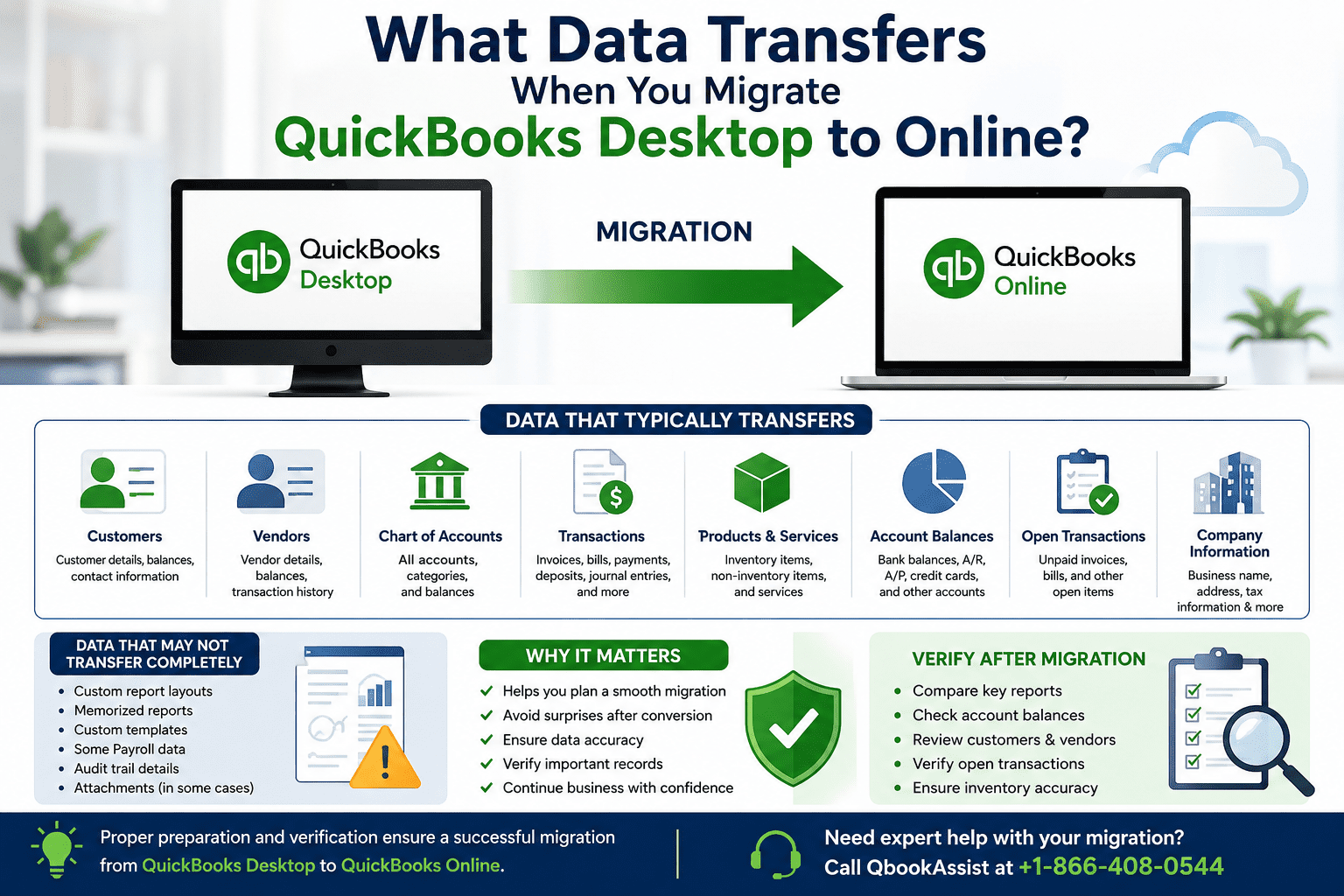
One of the first questions business owners ask before they migrate QuickBooks Desktop to Online is: “Will all of my data transfer?”
It’s a valid concern. Your QuickBooks company file contains years of financial records, customer information, invoices, payroll data, vendor details, and reports that are critical to your business operations. The thought of losing any of that information during migration can make the transition feel risky.
The good news is that QuickBooks Online is designed to import most essential accounting data from QuickBooks Desktop. However, not every piece of information transfers exactly the same way. Understanding what moves successfully—and what may require manual review—can help you plan a smoother migration.
In this guide, we’ll explain what data transfers when you migrate QuickBooks Desktop to Online, what doesn’t transfer, common migration issues, and how to verify your data after conversion.
Why Understanding Data Transfer Matters
Before switching to QuickBooks Online, it’s important to know what happens to your existing company file.
Many businesses assume that every report, template, and feature from Desktop will appear exactly the same in QuickBooks Online. Unfortunately, that isn’t always the case.
Knowing what transfers helps you:
- Avoid surprises after migration
- Prepare important records beforehand
- Identify information that may require manual adjustments
- Verify accuracy once migration is complete
Data That Typically Transfers Successfully
The majority of core accounting information transfers from QuickBooks Desktop to Online.
1. Chart of Accounts
Your Chart of Accounts is one of the most important components of your accounting system.
During migration, QuickBooks generally transfers:
- Asset accounts
- Liability accounts
- Equity accounts
- Income accounts
- Expense accounts
After migration, review account names and balances to ensure everything transferred correctly.
2. Customer Information
Customer records usually transfer successfully, including:
- Customer names
- Company names
- Contact details
- Billing addresses
- Email addresses
- Customer balances
This allows businesses to continue invoicing customers without rebuilding records manually.
3. Vendor Information
Vendor profiles also transfer during migration.
This typically includes:
- Vendor names
- Contact information
- Outstanding balances
- Transaction history
Having vendor records available immediately helps maintain continuity in accounts payable management.
4. Historical Transactions
Most historical accounting transactions transfer to QuickBooks Online.
Examples include:
- Invoices
- Sales receipts
- Credit memos
- Bills
- Checks
- Deposits
- Journal entries
- Payments
These records provide the financial history necessary for reporting and audits.
5. Products and Services
Items used in transactions often transfer as Products and Services in QuickBooks Online.
This generally includes:
- Inventory items
- Non-inventory items
- Service items
Businesses should review item settings after migration to confirm accuracy.
6. Account Balances
Current account balances typically transfer successfully.
Examples include:
- Bank account balances
- Credit card balances
- Accounts receivable
- Accounts payable
These balances should match your Desktop records once migration is complete.
7. Open Transactions
QuickBooks Online generally imports open transactions such as:
- Unpaid invoices
- Outstanding bills
- Pending payments
This allows businesses to continue daily operations without interruption.
8. Company Information
Basic company details usually transfer, including:
- Business name
- Address
- Contact information
- Tax identification settings
However, it’s always wise to verify this information after migration.
Data That May Not Transfer Completely
While most accounting data transfers successfully, some QuickBooks Desktop features have limitations.
Custom Report Settings
Custom reports often require recreation in QuickBooks Online.
Although the underlying data transfers, report formatting and customization may not.
Customized Templates
Custom invoice templates, sales forms, and branding elements may not migrate exactly as they appear in Desktop.
Businesses often need to redesign templates within QuickBooks Online.
Audit Trail Information
Certain audit trail details available in Desktop may not transfer during migration.
Memorized Reports
Memorized reports frequently need to be recreated manually after conversion.
Fixed Asset Manager Data
Businesses using advanced fixed asset tracking should review asset records carefully after migration.
Certain Payroll Information
Payroll data transfer can vary depending on:
- Payroll service version
- Subscription type
- Payroll history requirements
Payroll records often require additional verification.
Common Questions About Data Transfer
Will My Historical Data Be Lost?
In most cases, no.
QuickBooks Online imports a significant amount of historical accounting information. However, businesses should always create a complete backup before migration.
What Happens to Attachments?
Some attachments may not transfer automatically depending on the Desktop version and migration method used.
Review attached documents after migration if they are important to your operations.
Will Reconciliations Transfer?
Many reconciled transactions transfer, but businesses should still verify:
- Bank reconciliations
- Credit card reconciliations
- Opening balances
This helps identify discrepancies early.
Common Data Transfer Problems and Solutions
Problem 1: Missing Transactions
Sometimes users discover missing transactions after migration.
Solution
Compare:
- Balance Sheet reports
- Profit and Loss reports
- Customer balances
- Vendor balances
between Desktop and Online.
Problem 2: Incorrect Account Balances
Occasionally account balances may appear different after conversion.
Solution
Review:
- Opening balances
- Journal entries
- Reconciliation records
before assuming data was lost.
Problem 3: Inventory Differences
Inventory calculations can change because QuickBooks Online uses different inventory tracking methods.
Solution
Review inventory valuation reports after migration and make adjustments if necessary.
Problem 4: Data Corruption Before Migration
Corrupt company files can create transfer issues.
Solution
Before migrating:
- Run Verify Data.
- Run Rebuild Data.
- Correct identified errors.
- Retry migration.
How to Verify Data After Migration
Successful migration doesn’t end when the import completes.
Experts recommend reviewing the following reports in both systems.
Balance Sheet
Compare:
- Assets
- Liabilities
- Equity
Profit and Loss Statement
Verify:
- Income
- Expenses
- Net profit
Accounts Receivable Aging
Confirm customer balances match.
Accounts Payable Aging
Verify outstanding vendor balances.
Inventory Reports
Check inventory quantities and values.
Real-World Example
A small manufacturing company migrated from QuickBooks Desktop to Online to solution multiple locations and remote accounting access.
Before migration, they:
- Updated QuickBooks Desktop
- Verified data integrity
- Created multiple backups
After migration, they compared key financial reports and identified minor inventory discrepancies. These were corrected quickly, allowing the business to continue operating without disruption.
Because they reviewed their data carefully, the transition was successful and accurate.
Best Practices Before You Migrate QuickBooks Desktop to Online
To ensure maximum data accuracy:
Create a Complete Backup
Never begin migration without a backup copy of your company file.
Update QuickBooks Desktop
Install the latest updates before exporting.
Clean Up Duplicate Records
Removing unnecessary data can simplify migration.
Verify and Rebuild Data
Fixing file issues beforehand reduces migration errors.
Schedule Time for Post-Migration Review
Plan to compare reports and verify balances before relying entirely on the new system.
Frequently Asked Questions
Does all QuickBooks Desktop data transfer to QuickBooks Online?
Most essential accounting data transfers, including customers, vendors, accounts, balances, and transactions. Some custom settings and desktop-specific features may require manual adjustments.
Can I transfer years of historical transactions?
Yes. Historical transaction data generally transfers successfully, though businesses should verify report accuracy after migration.
Will customer invoices transfer?
Yes. Most invoices, payments, and customer transaction histories transfer to QuickBooks Online.
Do payroll records transfer automatically?
Payroll data transfer depends on the payroll service and setup. Additional review is recommended.
Can I keep my QuickBooks Desktop file after migration?
Absolutely. Many businesses retain their Desktop company file for historical reference and backup purposes.
What should I do if data is missing after migration?
Compare reports between Desktop and Online, review migration logs, and seek professional assistance if discrepancies remain.
Final Thoughts
Understanding what data transfers when you migrate QuickBooks Desktop to Online can help eliminate uncertainty and ensure a smoother transition. While most critical accounting records move successfully, certain customizations, reports, and specialized features may require additional attention after migration.
By preparing your company file, creating backups, verifying data before conversion, and reviewing reports afterward, you can significantly reduce the risk of errors and maintain confidence in your financial records.
If you’re planning a migration and want expert assistance with data conversion, troubleshooting, or post-migration verification, contact QbookAssist at +1-866-408-0544 for professional QuickBooks solutions.