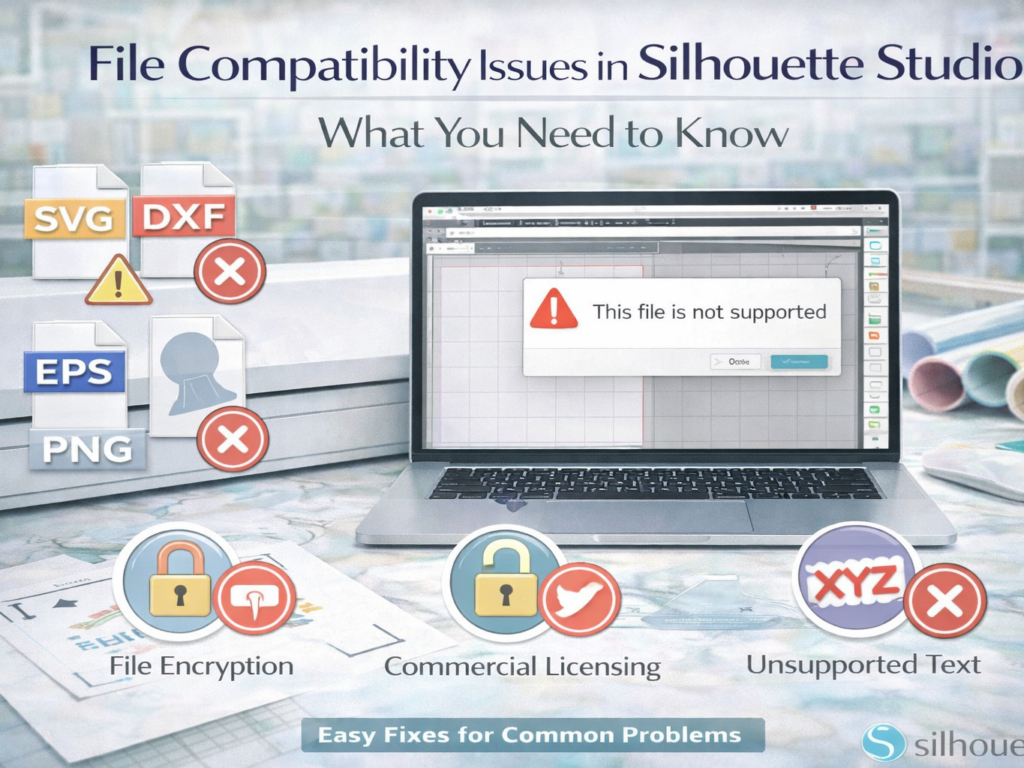
If you’ve ever imported a design into Silhouette Studio® only to find it won’t open, won’t cut, or looks completely different than expected; you’re not alone.
File compatibility is one of the most common challenges for both beginners and experienced creators. Whether you’re downloading designs online or creating your own graphics, understanding how file types work within the Silhouette ecosystem is key to avoiding frustration.
The good news? Once you understand the basics, these issues are easy to fix; and even easier to prevent.
Let’s break down everything you need to know.
Understanding the Silhouette Ecosystem
Silhouette’s workflow is built around three key components:
- Silhouette Studio® – where you design and prepare files
- Silhouette cutting machines – where designs are physically created
- Silhouette Design Store – where you access ready-made, compatible designs
Most file issues happen when importing designs from outside this ecosystem; especially when those files aren’t optimized for cutting.
Common File Types in Silhouette Studio®
Before troubleshooting, it’s important to understand which file types work best.
Native Silhouette Files
- .STUDIO / .STUDIO3
- Fully compatible
- Ready to cut immediately
- No setup required
These are the most reliable files; especially those from the Silhouette Design Store.
SVG Files (Scalable Vector Graphics)
- Editable vector format
- Popular for crafting
- Requires Designer Edition or higher
SVGs are flexible, but may require cleanup after import.
PNG & JPG Files
- Image-based (not vector)
- Require tracing before cutting
These are great for Print & Cut, but not ready for direct cutting.
DXF Files
- Basic vector format
- Compatible with free version of Studio
- May lose formatting
Often used as an alternative to SVG; but can be less reliable.
1. File Won’t Open in Silhouette Studio®
The Problem
You try to open a file, but nothing happens; or you get an error.
Common Causes
- Unsupported file type
- SVG opened in free version (not supported)
- Corrupted file
How to Fix It
- Check the file format
- Upgrade to Designer Edition for SVG support
- Try re-downloading the file
- Open via File → Open instead of dragging
Best Practice: Use Design Store files for guaranteed compatibility.
2. Imported File Doesn’t Cut
The Problem
The design appears in Studio; but the machine doesn’t cut it.
Common Causes
- No cut lines present
- Design set to “No Cut”
- File imported as an image
How to Fix It
- Go to the Send panel
- Ensure cut lines are enabled
- If it’s an image, use the Trace tool to create cut paths
Without cut paths, your machine has nothing to follow.
3. SVG Files Import Incorrectly
The Problem
Your SVG opens, but:
- Elements are missing
- Layers are merged
- Text is distorted
Common Causes
- Font issues
- Unsupported effects
- Complex design structure
How to Fix It
- Convert text to outlines before importing
- Simplify the design in original software
- Ungroup elements in Silhouette Studio®
Not all SVGs are created equally; some require adjustments.
4. DXF Files Look Broken or Messy
The Problem
Lines are disconnected, shapes look distorted, or designs appear incomplete.
Why It Happens
DXF files don’t always preserve:
- Layers
- Curves
- Advanced design elements
How to Fix It
- Manually reconnect shapes
- Use “Edit Points” to refine lines
- Consider upgrading to use SVG files instead
DXF is useful; but limited.
5. PNG/JPG Files Won’t Cut Properly
The Problem
You import an image, but it doesn’t cut; or cuts the wrong shape.
Why It Happens
These files don’t contain cut paths.
How to Fix It
- Use the Trace panel
- Adjust threshold and trace area
- Create clean cut lines
Tip: High-contrast images trace best.
6. File Size or Scale Issues
The Problem
Your design imports too large, too small, or distorted.
Common Causes
- Incorrect DPI settings
- Scaling issues during import
How to Fix It
- Resize manually in Silhouette Studio®
- Check dimensions before cutting
- Use grid and rulers for accuracy
Always double-check size before sending to cut.
7. Missing Fonts or Text Changes
The Problem
Text looks different than expected.
Why It Happens
- Original font isn’t installed on your system
- File references unavailable fonts
How to Fix It
- Install the required font
- Replace with a similar font
- Convert text to outlines before saving (for designers)
Fonts can make or break a design; handle them carefully.
8. Layers Are Grouped or Locked
The Problem
You can’t edit individual elements.
How to Fix It
- Select the design
- Click Ungroup
- Release compound paths if needed
This gives you full control over your design.
9. Complex Designs Causing Lag or Crashes
The Problem
Silhouette Studio slows down or crashes.
Common Causes
- Too many nodes
- Overly detailed files
How to Fix It
- Simplify the design
- Reduce unnecessary points
- Break design into smaller parts
Simpler designs perform better.
10. Print & Cut Files Not Aligning
The Problem
Printed designs don’t align with cuts.
Common Causes
- Improper file setup
- Missing registration marks
How to Fix It
- Enable registration marks in Page Setup
- Ensure proper alignment
- Use high-quality print settings
Precision starts with proper setup.
Why the Silhouette Design Store Eliminates Compatibility Issues
The easiest way to avoid file problems? Use the Silhouette Design Store.
Design Store files are:
- Pre-formatted for Silhouette Studio®
- Built with clean cut paths
- Tested for compatibility
This means:
- No tracing required
- No formatting issues
- No missing elements
For both beginners and professionals, this saves time and eliminates guesswork.
Best Practices for File Compatibility
1. Use Vector Files Whenever Possible
They scale better and cut more cleanly.
2. Keep Files Organized
Label and store designs for easy access.
3. Test Before Full Cuts
Always run a test cut.
4. Keep Software Updated
Updates improve compatibility and performance.
5. Start Simple
Especially when learning new file types.
When to Use External Files vs. Design Store Files
Use External Files When:
- You’re creating original designs
- You need custom artwork
Use Design Store Files When:
- You want reliability
- You need quick results
- You’re scaling production
A mix of both works best for most creators.
Final Thoughts: Mastering Files = Mastering Your Workflow
File compatibility issues can feel frustrating; but they’re simply part of learning how digital design works.
With a clear understanding of:
- File types
- Cut paths
- Import settings
- Design preparation
You can avoid most problems entirely.
And with the support of Silhouette Studio®, Silhouette cutting machines, and the Silhouette Design Store, you have a system designed to make the process smoother every step of the way.
So the next time a file doesn’t behave the way you expect, don’t panic.
Take a step back. Check the format. Adjust your settings.
Because once you understand how files work, you unlock a new level of control; and a much more confident, creative workflow.